職涯與生活
The AI Overtime Trap: Why AI Makes You Busier Instead of Less
A Berkeley study found AI leads to 83% more workload for employees. Lazy Da …
2026-03-09
3 分鐘 →
After using Comet for a few months,
I thought I couldn’t go back to Chrome.
Because I’m now used to Comet’s AI search experience, and going back to traditional search feels like going back to the Stone Age. I’m so used to getting the conclusion first, then looking at the details, while going back to traditional search means looking at a bunch of links first, and then finding the answer myself, which feels much less efficient.
Until one day I stumbled upon a setting online— I realized that Chrome can actually do the same thing.
Comet is an AI browser launched by Perplexity.
The reason it attracted me was simple: AI search is built into the browser, so you don’t have to sift through a bunch of blue links.
The logic of traditional search is “Here are 10 links, find the answer yourself.” Perplexity’s AI search is “I’ll organize it for you and tell you.”
After getting used to it, I really don’t want to look at that row of links anymore.
For a lazy person like me, the efficiency boost feels huge, and that lazy DNA just wants a more direct answer, without having to take an extra step.
Of course, another reason is that my Comet subscription was about to expire!
This is the same principle as the difference between using and not using AI tools— once you’ve experienced a smoother process, it’s hard to go back.
One day I saw an article mentioning Google Search’s AI Mode.
Google’s AI Mode is a search experience powered by Gemini, with an appearance and logic similar to Perplexity— AI directly organizes the results, instead of just listing links.
But what moved me wasn’t the feature itself, but the following line:
You can set AI Mode as Chrome’s default search engine.
Wait… you can do that?!
The key is a parameter: udm=50
As long as you add this parameter to the search URL, Google will directly return results in AI Mode.
And Chrome’s custom search engine feature can set this URL as your default search.
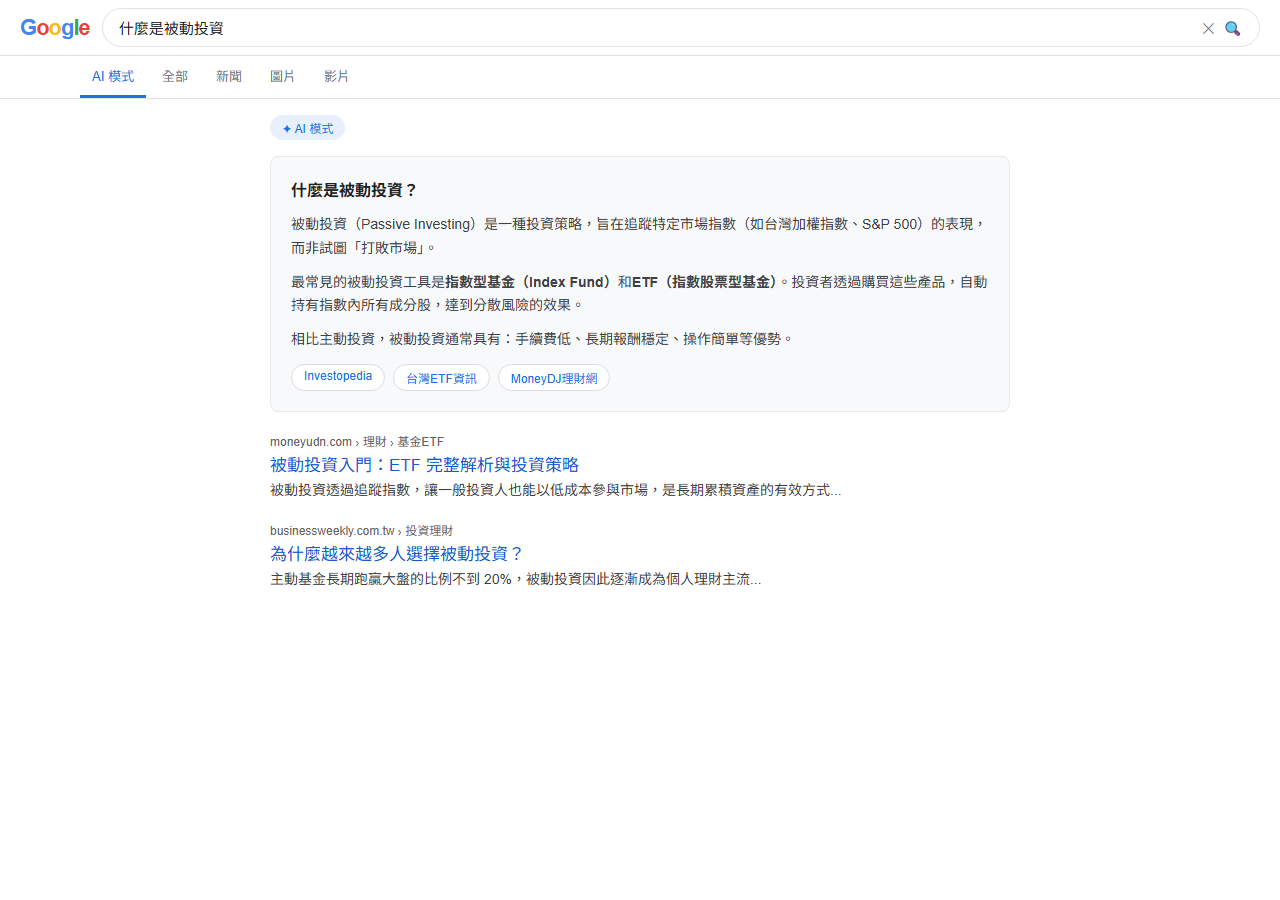
The whole setup takes less than three minutes, just follow the steps below.
In the Chrome address bar, enter:
chrome://settings/searchEngines
Press Enter, and you’ll see the search engine management page.
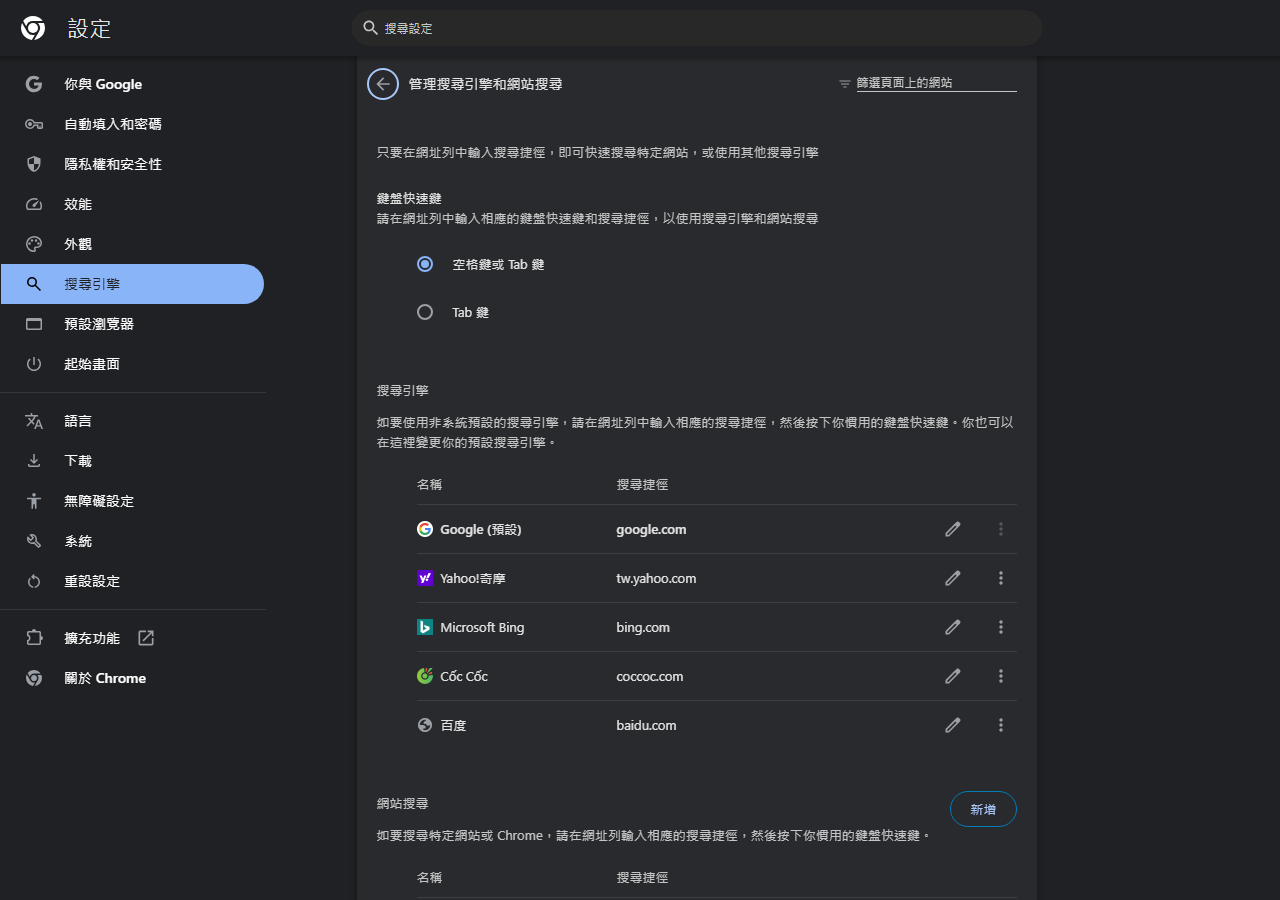
Click the “Add” button in the upper right corner, and fill in the three fields:
| Field | Value |
|---|---|
| Search engine | AI Mode |
| Shortcut | ai |
| URL with %s in place of query | https://www.google.com/search?udm=50&q=%s |
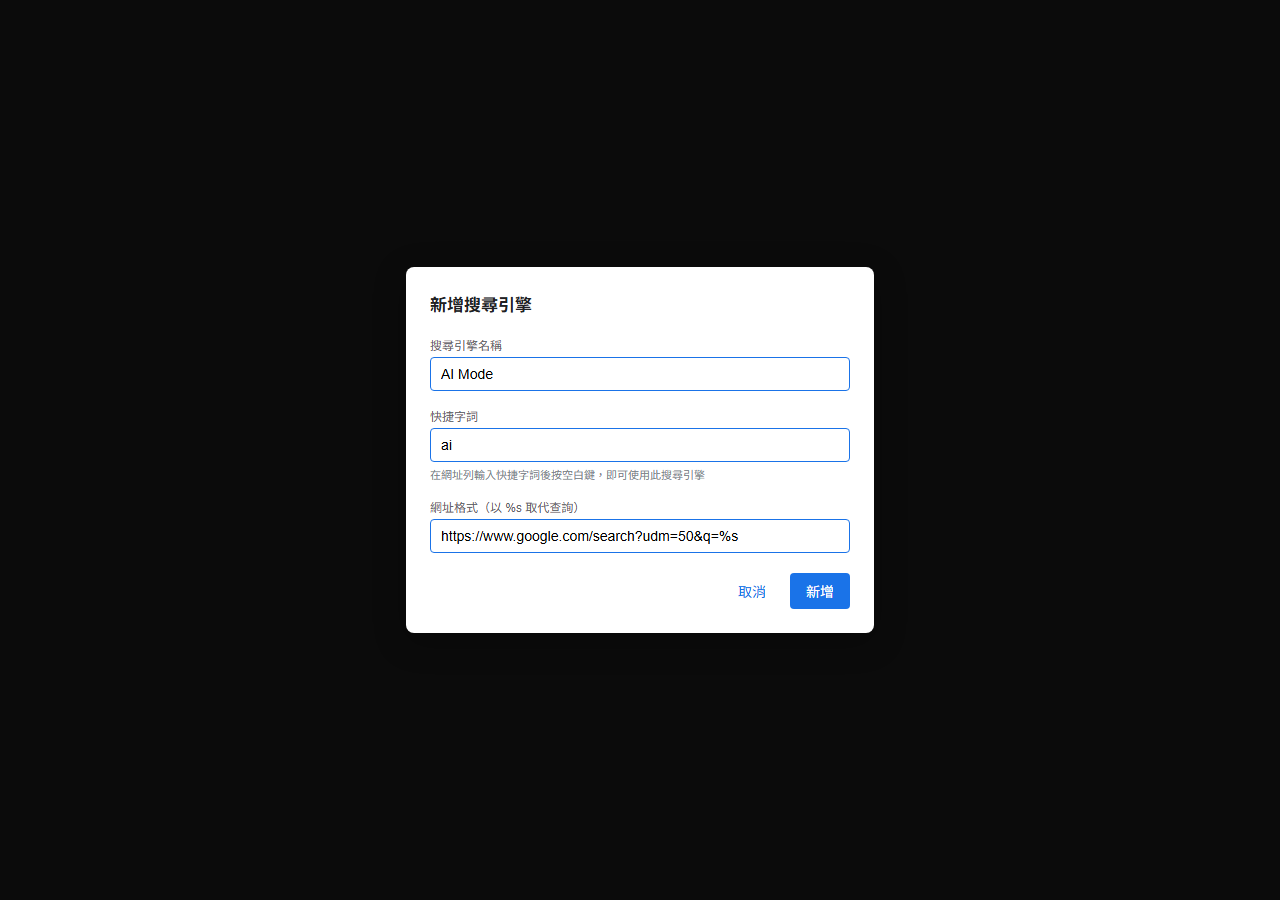
%s is a placeholder for the query text, and Chrome will automatically insert the keywords you enter.
After filling in the fields, click “Add” to confirm.
Find the “AI Mode” you just added in the list,
click the three dots ⋮ next to it,
and select “Make default”.
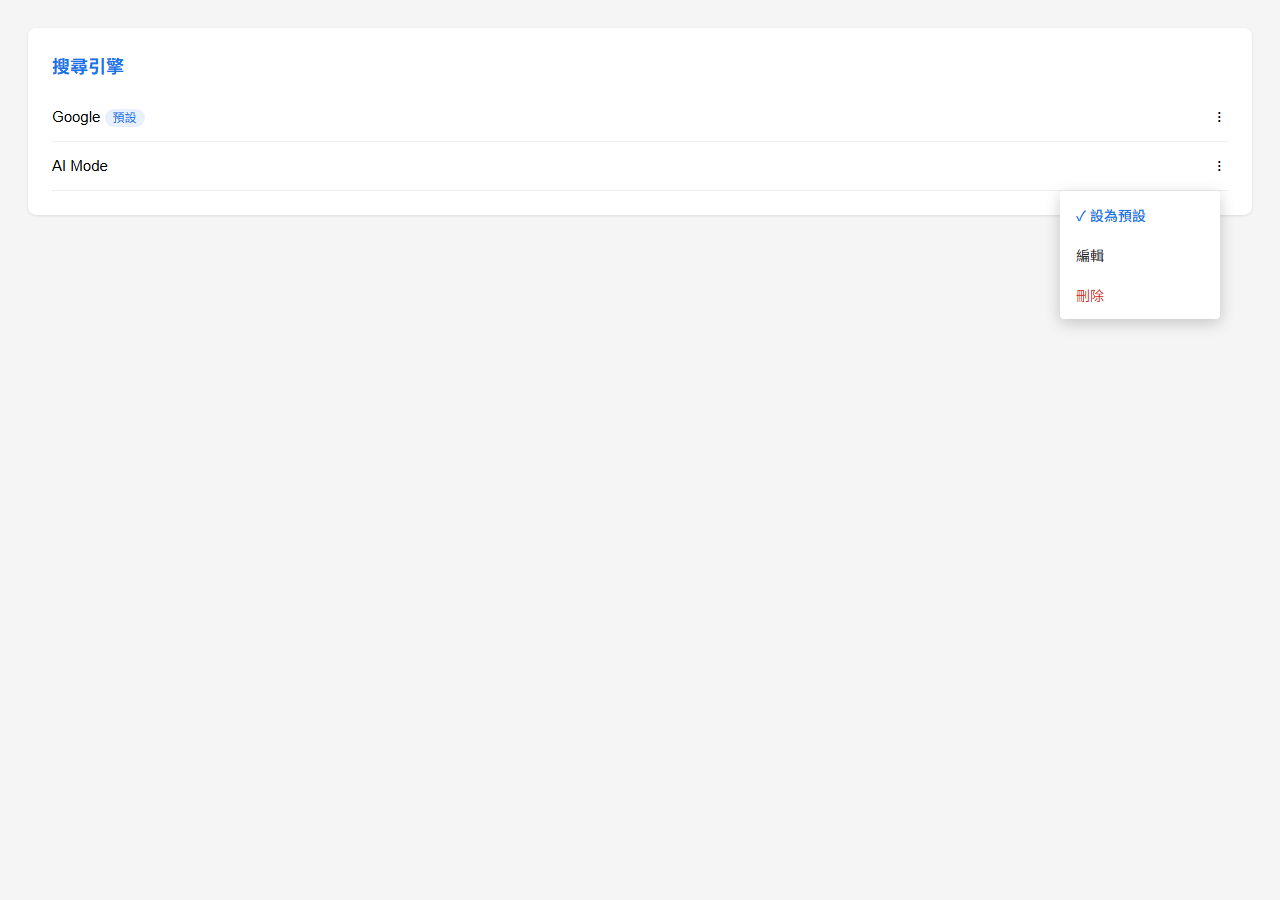
Done.
After setting it up, enter any question directly in the address bar, and press Enter to directly enter the AI Mode search results.
No need to go to the Google homepage first, no need to switch modes, and no need to open Perplexity separately.
That’s it.
This reminds me of the feeling of reviving Anytype before— sometimes it’s not that the tool itself isn’t good enough, it’s that you don’t know about a certain setting.
If you don’t want to change your original search settings, there are two other methods:
Option 1: Trigger with a Shortcut
Enter ai in the address bar, press the space bar,
then enter your query, and it will trigger AI Mode search.
(This shortcut was set in step two.)
Option 2: Traditional Search as a Backup
If you feel that the AI answer is not accurate enough,
or you want to see the original links,
you can change udm=50 to udm=14 in the URL,
and it will switch back to traditional Google search.
This feeling of “one setting changes the entire workflow” is consistent with the logic that this generation uses the internet, and the next generation may use AI.
The tool itself is not important, it’s how you use it that matters.

You don’t necessarily have to switch browsers.
Sometimes, one setting is enough.
Chrome’s custom search engine feature is hidden in chrome://settings/searchEngines,
add a udm=50 rule, set it as the default,
and you can turn Google AI Mode into your starting point for search.
If you’re like me and switched to Comet mainly for AI search— now there’s a reason to consider coming back.
🔒 免費訂閱,隨時可退訂
📩 訂閱即送 · Lead Magnet
訂閱即送 「ETF 懶人投資工具包」(VT/VOO/QQQ/0050 速查表、投資前檢查清單、定期定額紀律表)。有值得講的才寄 · 隨時退訂。